
Connect to Tiger Data
Connect to Tiger Cloud, self-hosted TimescaleDB, or MST using any PostgreSQL client
To connect to your service or self-hosted TimescaleDB instance, you need at least the following:
- Hostname
- Port
- Username
- Password
- Database name
Once you have these, connect using any PostgreSQL client. Find the connection methods and details for your product:
Connect to your Tiger Cloud service in any of these ways:
- Data view or SQL editor in Tiger Console: run queries in your browser, with no local client required.
psqlor any other PostgreSQL client: use the connection details below withpsql, or any PostgreSQL-compatible client or SQL editor.
Retrieve the connection details for your Tiger Cloud service:
-
In
<service name>-credentials.txt:All connection details are supplied in the configuration file you download when you create a new service.
-
In Tiger Console:
Open the
Servicespage and select your service. The connection details, except the password, are available inService info>Connection info>More details. If necessary, clickForgot your password?to get a new one.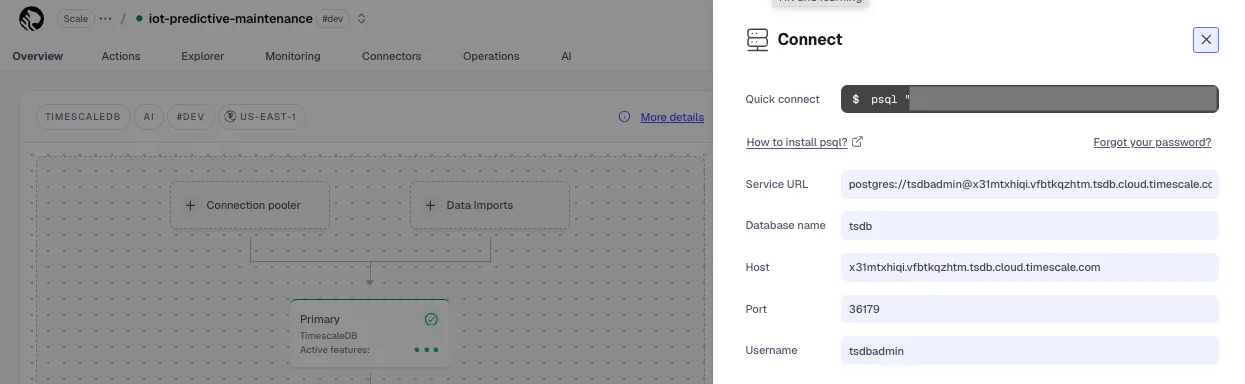
Find your project and service ID
Section titled “Find your project and service ID”To retrieve the connection details for your Tiger Cloud project and Tiger Cloud service:
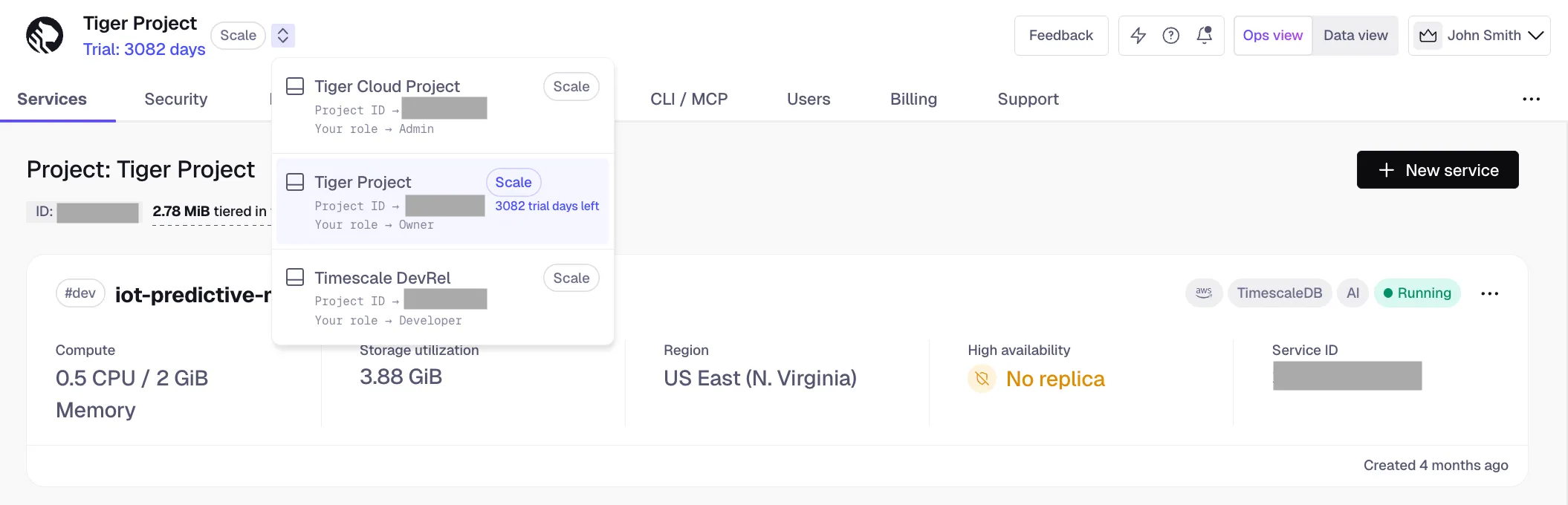
- Retrieve your project ID
In Tiger Console, click the arrows next to the project name in the top left. The project ID is under the project name.
- Retrieve your service ID
Click the dots next to the service, then click
Copynext to the service ID.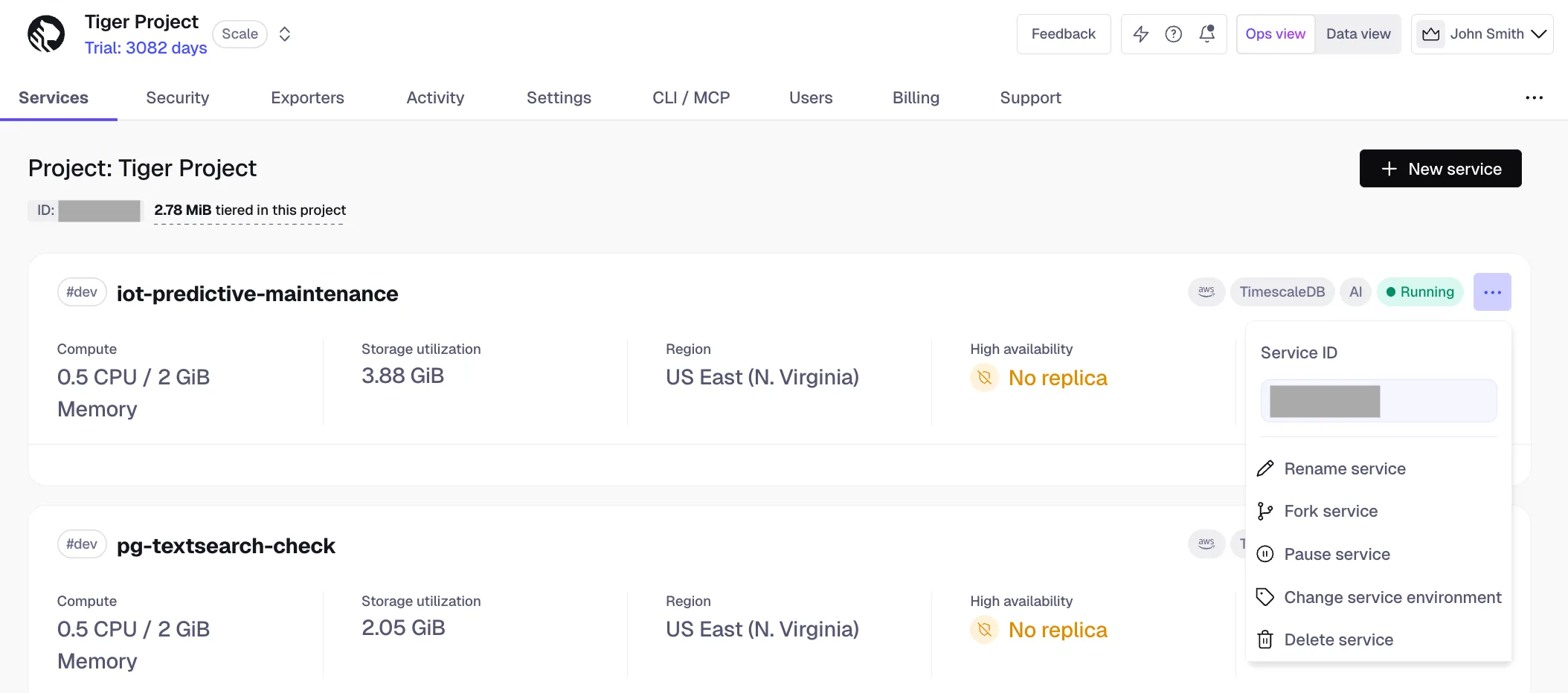
Create client credentials
Section titled “Create client credentials”You use client credentials to obtain access tokens outside of the user context.
To retrieve the connection details for your Tiger Cloud project for programmatic usage such as Terraform or the Tiger Cloud REST API:
- Open the settings for your project
In Tiger Console, click
Settings. - Create client credentials
-
Click
Create credentials, then copyPublic keyandSecret keylocally.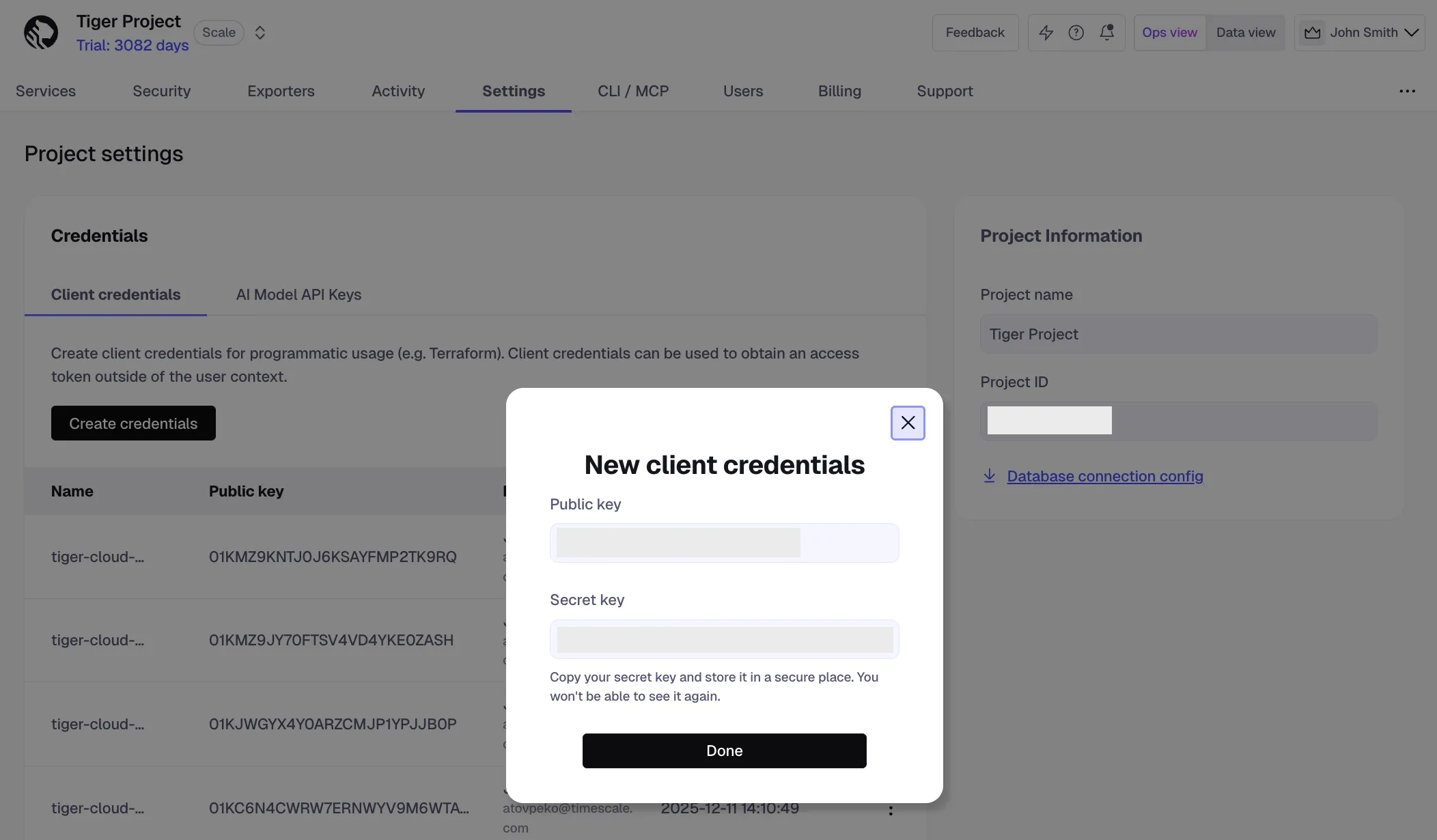
This is the only time you see the
Secret key. After this, only thePublic keyis visible in this page. -
Click
Done.
-
Connect using psql or any other PostgreSQL-compatible client or SQL editor, with the connection details below.
Find the connection details in the PostgreSQL configuration file or by asking your database administrator. The postgres superuser, created during PostgreSQL installation, has all the permissions required to run procedures in this documentation. However, it is recommended to create other users and assign permissions on the need-only basis.
Connect using psql or any other PostgreSQL-compatible client, with the connection details below.
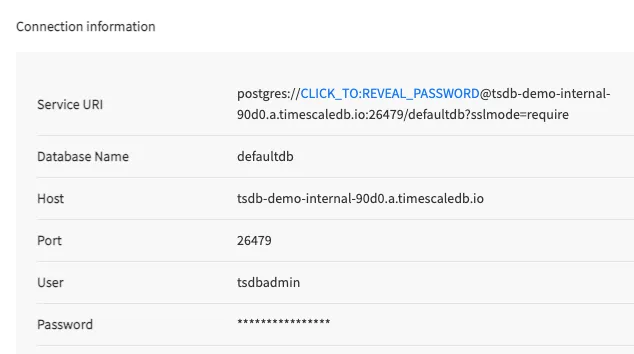
In the Services page of the Managed Service for TimescaleDB Console, click the MST service you want to connect to. You see the connection details: